
Blog · Gestionale
WooCommerce Speed Optimization: A Practical Guide for Italian Stores

To speed up a WooCommerce collegato al gestionale store, measure it first, then work through the layers in order: hosting and PHP settings, caching that leaves cart and checkout alone, lighter images, themes and plugins, and a clean database. Most slow stores are not slow for one reason. They carry a stack of small costs, and the fastest gains usually come from the server and from a handful of heavy extensions. This guide follows that order, so you spend time where it pays back.
TL;DR
- Measure product and checkout pages before changing anything, and focus on LCP, INP and CLS.
- Check your server against the current WooCommerce requirements: recent PHP, a supported database, HTTPS and enough memory.
- Cache pages and objects, but keep cart, checkout and My Account uncached so customers always see accurate data.
- Compress images, choose a lightweight theme and remove extensions that hit the database hardest.
- Clean expired transients and old data carefully, then retest to confirm each change worked.
Table of Contents
- Measure before you change anything
- Check your hosting and server settings
- Configure caching without breaking the cart
- Lighten images, themes and plugins
- Clean up the WooCommerce database
- Speed up the admin, the API and background jobs
- Verify the results and keep monitoring
- Get a store that stays fast
- FAQ
Measure before you change anything
Optimization without a baseline is guesswork. WooCommerce’s own developer documentation recommends testing regularly with PageSpeed Insights, GTmetrix or WebPageTest, and using Query Monitor to analyze plugin behavior (WooCommerce performance best practices).
Test the pages that earn money, not just the home page:
- A category page with filters applied.
- A product page, ideally one with variations.
- The cart and the checkout.
WooCommerce advises running PageSpeed Insights on product and checkout pages and concentrating on Largest Contentful Paint (LCP), Interaction to Next Paint (INP) and Cumulative Layout Shift (CLS) (WooCommerce speed tips). In plain terms: how fast the main content appears, how quickly the page reacts to a tap or click, and whether the layout jumps while loading.
Find the heavy extensions
Speed tools tell you that a page is slow. Query Monitor tells you why. Its “Queries by Component” view shows which extensions hit the database hardest on a given page (WooCommerce speed tips). Open the checkout while logged in as an administrator, look at the component with the most queries and the slowest ones, and write down the top three. Those are your first candidates for replacement, configuration or removal.
Keep a simple log: date, page, LCP, INP, CLS, and what you changed. Without it, you will not know which fix helped.
Check your hosting and server settings
Hosting is where most WooCommerce speed problems start, because carts, checkout, My Account and admin pages are mostly uncacheable as full pages. Every visitor on those pages makes PHP and the database do real work.
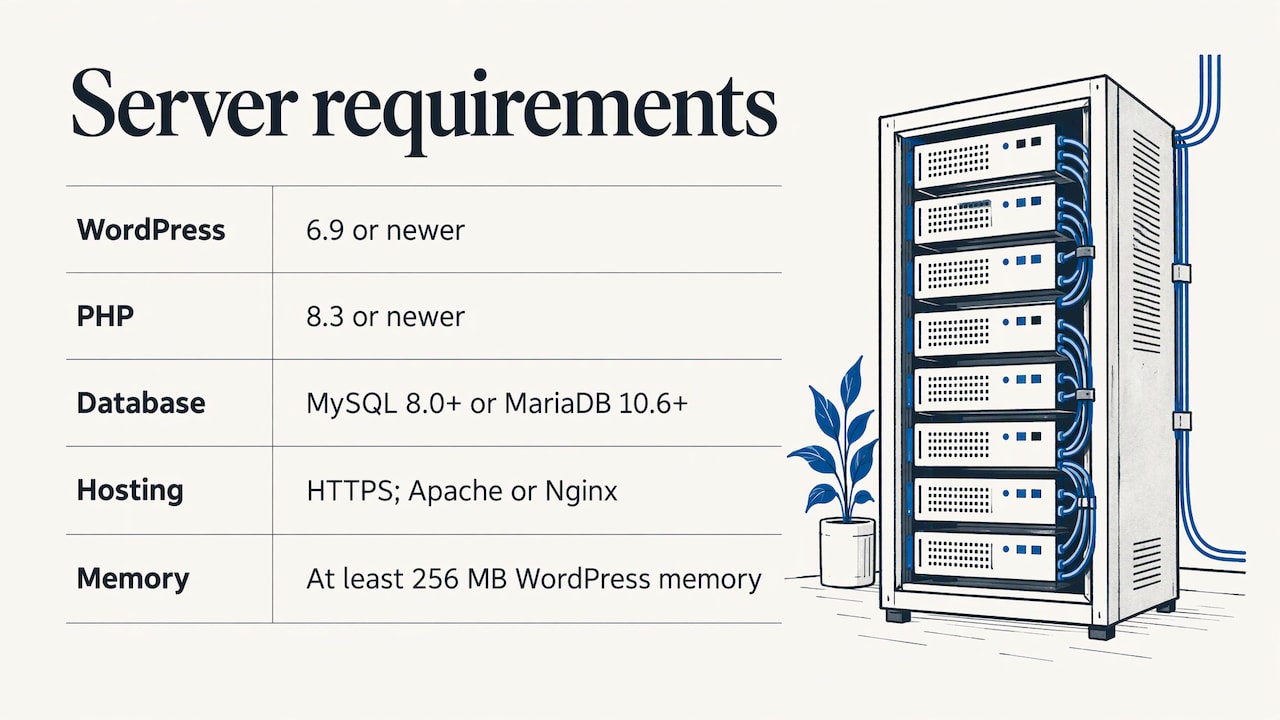
For WooCommerce 10.8 and later, the official server recommendations list WordPress 6.9 or newer, PHP 8.3 or newer, MySQL 8.0 or newer or MariaDB 10.6 or newer, HTTPS, and a WordPress memory limit of at least 256 MB. Apache or Nginx is recommended (WooCommerce server recommendations). Check these against your hosting panel and the Site Health screen in WordPress, which also flags outdated PHP versions and blocked external HTTP requests (WordPress Site Health).
Size PHP-FPM for checkout peaks
If you manage your own server, PHP-FPM settings matter. The number of workers should be based on available RAM, the average memory of a PHP process and the concurrency you expect, then monitored and adjusted, for example through pm.max_children (DCHost on PHP-FPM settings). Too few workers and customers queue at checkout during a promotion. Too many and the server runs out of memory.
Why location and management matter in Italy
If your customers are in Italy, a server in Italy keeps latency low and simplifies questions about where personal data is stored. A managed setup also removes the routine work of PHP upgrades, backups and monitoring. If you want to see what that looks like in practice, our guide to managed WordPress hosting for Italian SMEs explains what to expect, and our managed hosting service covers sites and e-commerce.
A broader look at the topic is in our article on website speed for SMEs with an ERP and an online store.
Configure caching without breaking the cart
Caching is the largest single speed gain for catalog and content pages, and the most common source of bugs when it is configured carelessly. The rule is simple: cache what is the same for everyone, never cache what is personal.
WooCommerce’s documentation suggests server-side caching such as Varnish, NGINX FastCGI Cache or Redis, or a WordPress caching plugin, configured so cart and checkout pages stay uncached (WooCommerce performance best practices).
What to cache, and what to exclude
| Page or request | Cache as full page? | Notes |
|---|---|---|
| Home, category, product pages | Yes | Purge when price or stock changes |
| Cart | No | Content is specific to the visitor |
| Checkout | No | Contains personal and payment data |
| My Account | No | Logged-in, personal |
| Admin and REST API | No | Dynamic by nature |
Object caching with Redis helps exactly where page caching cannot: it stores the results of repeated database queries, so logged-in users, carts and admin screens run fewer queries. If you are comparing options, an independent roundup of caching plugins for WooCommerce can help you shortlist, but whichever you choose, test the full purchase flow afterward.
Test the purchase flow after every caching change
After enabling or changing a cache, run this check in a private browser window:
- Add a product to the cart.
- Change the quantity and apply a coupon.
- Log in and out, and confirm the cart is still correct.
- Complete a test order with every payment method you offer.
- Confirm that stock and price changes appear on product pages within the time you expect.
If any step shows stale data, an exclusion rule is missing.
Lighten images, themes and plugins
Once the server and cache are sound, the page itself is the next cost. This is also where store owners can act without a developer.
Images
Product catalogs are image-heavy, so this is usually the quickest front-end win. WooCommerce’s guidance is to compress images before uploading, use JPEG for photographs and PNG for graphics that need transparency, enable lazy loading and responsive images, and serve static assets through a CDN (WooCommerce performance best practices).
In practice, set a maximum upload size for your team, for example a long edge around the largest size your theme actually displays. A photo taken straight from a camera and uploaded at full size is the classic cause of a slow product page. Do not lazy-load the main product image at the top of the page, since it is probably your LCP element and should load first.

Theme
A lightweight theme, built for WooCommerce and without a large bundle of scripts you never use, gives every page a better starting point. Multipurpose themes with built-in sliders, animations and page builders add weight to every request. Before a redesign, test the demo of the theme on PageSpeed Insights, not just the screenshots.
Plugins and extensions
The number of plugins matters less than what each one does. A single extension that runs queries on every page can cost more than ten small ones. Use Query Monitor, or a plugin-assessment resource such as WP Hive, to judge them (WooCommerce performance best practices).
A practical review routine:
- List every active plugin and write down the business reason for it.
- Remove anything inactive or duplicated, such as two plugins that both add social sharing.
- Replace plugins that load scripts on every page with ones that load only where needed.
- For each extension, ask whether a setting, a few lines of code or an integration could replace it.
If you are building or rebuilding the store, our page on professional e-commerce site creation describes how we approach it, and the choice of platform is covered in our guide on how to choose an e-commerce platform.
Disable what you do not use
Some WooCommerce features load on pages where they are not needed. The cart fragments request, for example, can fire AJAX calls on every page to refresh the mini-cart. If your theme does not show a live mini-cart, it can often be disabled. The WordPress Heartbeat API can also be limited in the admin area. Make each of these changes one at a time and retest the cart.
Clean up the WooCommerce database
A store that has run for years accumulates data: expired transients, old sessions, revisions, spam comments, scheduled actions. Cleaning it is safe when you know what each item is.
Safe cleanup steps
WooCommerce documentation recommends regularly deleting spam comments, post revisions and expired transients, and optimizing database tables (WooCommerce performance best practices). Always take a backup first.
Under WooCommerce, Status, Tools you will find the built-in options. Two points matter:
- Clearing expired transients does not touch active ones, so it is safe on a live store.
- Clearing customer sessions deletes active sessions, including cart contents. Do this at a quiet hour, not during a campaign (WooCommerce system tools).
If you use High-Performance Order Storage (HPOS) as the authoritative order store with compatibility mode off, the same tools page explains how to clean eligible legacy order data after WooCommerce checks the matching HPOS order (WooCommerce system tools). Do not delete legacy order data by hand.
Watch the options table and scheduled actions
Two less obvious sources of database growth deserve a look:
- Action Scheduler. Version 3.0 moved its data to custom tables, and in the developers’ tests this cut database space by 70% and improved action creation and retrieval times (WooCommerce Developer Blog). Make sure your store is not carrying thousands of old completed or failed actions.
- Layered navigation caches. WooCommerce 10.8 caps the filter caches used by layered navigation so they cannot grow without limit in the
wp_optionstable (WooCommerce 10.8.0 release notes). If your store uses many product filters, keeping WooCommerce updated matters for this reason alone.
A large, autoloaded wp_options table slows every request, because WordPress loads those values on each page. Check its size with Query Monitor or a database tool, and ask your developer to review the biggest entries.
Speed up the admin, the API and background jobs
Shop managers feel slowness too. A sluggish admin makes order processing expensive. The same PHP-FPM sizing that protects checkout also protects the dashboard, because admin pages are dynamic and cannot be cached as full pages. Limit the Heartbeat API frequency, keep order lists lean by using HPOS, and remove dashboard widgets from plugins you do not use.
If an ERP, a warehouse system or a marketplace connects to your store through the REST API, a slow integration can look like a slow site. Schedule heavy synchronizations, such as full price and stock updates, outside peak shopping hours, and update only changed records. We explain this in more detail in our guide to WooCommerce and ERP integration and in the practical guide to connecting WooCommerce to a management system.
Our view: speed is a system problem
In our experience, a slow store is rarely a plugin problem alone. It is usually the result of how the store, the server and the company’s management system were put together, and nobody was responsible for the whole picture.
That is why we work with one dedicated consultant per client, who studies the company’s processes and gives direct support, instead of routing you through a call center. Speed decisions depend on real operations: how many products you sync, how often prices change, when orders peak, what the warehouse needs.
When the ERP and the WooCommerce store exchange data in a planned way, you avoid duplicated work, long synchronization jobs during the day and manual fixes. Our team handles development and user assistance internally, so the person who tunes the server also understands the integration that sits on top of it.
We would rather fix the cause once than add another plugin to hide the symptom.
Claudio
Verify the results and keep monitoring
After each change, retest the same pages with the same tool and compare with your log. WooCommerce recommends regular testing with PageSpeed Insights, GTmetrix or WebPageTest, plus tools such as New Relic or Uptime Robot to monitor performance over time (WooCommerce performance best practices).
A simple monitoring routine for a small store:
- Weekly: check uptime alerts and the WordPress Site Health screen.
- Monthly: rerun PageSpeed Insights on a category, a product page and the checkout, and record LCP, INP and CLS.
- After every major update or new plugin: retest, then check a full test order.
- Before seasonal peaks: review PHP workers, memory and database size.
Speed also supports visibility. Faster pages help both shoppers and search performance, and we cover the search side in our SEO guide for WooCommerce stores in Italy. Security updates and speed work often go together, so see what to check in WooCommerce security too.
Get a store that stays fast
If you want the hosting, the WooCommerce store and the ERP integration reviewed together, we can do it. We configure e-commerce sites, managed hosting on cloud or dedicated servers in Italy, and the connection between WooCommerce and your management software, with one consultant who knows your business.
See our web and e-commerce services or contact Linkware to request a review of your store.
FAQ
What is the first thing to fix on a slow WooCommerce store?
Measure product and checkout pages, then check the server. Outdated PHP, low memory limits and underpowered hosting cause more slowdowns than any front-end setting. Compare your setup with the current WooCommerce server recommendations before installing anything new.
Can I cache the whole WooCommerce store?
No. Catalog, category and product pages can be cached, but cart, checkout and My Account must stay uncached because they contain personal, changing data. Object caching with Redis helps on those dynamic pages without showing anyone another customer’s content.
Is it safe to clean the WooCommerce database?
It is, with a backup and the right tools. Clearing expired transients from WooCommerce, Status, Tools leaves active ones alone. Clearing customer sessions removes active carts, so do it when traffic is low. Do not delete legacy order data manually if you use HPOS.
How often should I test my store’s speed?
Check uptime continuously, and run PageSpeed Insights on key pages at least monthly. Also retest after every plugin, theme or WooCommerce update, and before seasonal peaks, so a regression is caught before customers notice it.
Do more plugins always mean a slower store?
Not necessarily. What counts is what each plugin does on each page. Use Query Monitor to see which extensions run the most queries, and replace or reconfigure the heaviest ones first.
Recommended
Vuoi digitalizzare la tua azienda?
Un consulente LINKWARE ti propone la soluzione su misura, senza impegno.
Richiedi una demo gratuita