
Blog · Gestionale
WooCommerce Stock Sync with Your ERP: A Practical Guide

l'integrazione con WooCommerce stock sync means that the quantity your ERP holds for each item is the quantity your online store shows, and that every web order reduces that same quantity. WooCommerce does not do this alone: it keeps its own stock field, and nothing connects it to your warehouse unless you add a connector, a plugin or a custom integration through its API. This guide explains how the data moves, which system should be the master, what to prepare, and how to avoid overselling.
TL;DR
- WooCommerce has its own stock counter. To align it with your ERP you need an integration that writes quantities to the store and reads orders back.
- Decide one master for stock. For most SMEs with a warehouse, that is the ERP, and WooCommerce receives the quantities.
- Clean SKUs, variants and warehouse codes come before any connector. Most sync errors start with mismatched codes.
- Prevent overselling with event-based updates, safe handling of simultaneous orders and a scheduled reconciliation.
- Test with a staging copy, then monitor logs and failed messages every day in the first weeks.
Table of Contents
- Why WooCommerce needs an external integration
- How stock data moves between WooCommerce and the ERP
- Which system should control inventory
- What to prepare before connecting
- Connector, plugin or custom integration
- How often stock should update and how to avoid overselling
- Testing, monitoring and troubleshooting
- Our perspective
- Get an integration built around your warehouse
- FAQ
Why WooCommerce needs an external integration
WooCommerce is a store: it manages catalog, cart, checkout and a stock quantity per product. Your ERP is the system of record for purchases, production, warehouse movements, invoicing and accounting. When the two are not connected, someone retypes quantities or uploads spreadsheets, and the numbers drift apart. The usual result is a customer buying an item you no longer have, or a product marked out of stock that is sitting on a shelf.
The store offers a standard way to connect external systems. The WooCommerce REST API documentation describes product objects that include the SKU and stock fields, so an external program can read and update them. It does not decide what the right number is. That logic lives in the integration you build or configure.
An integration normally does four things:
- Sends available quantities from the ERP to WooCommerce.
- Brings web orders into the ERP as customer orders, so stock is committed there.
- Sends order status changes back (shipped, cancelled, returned).
- Checks both sides periodically and corrects differences.
If you want the wider picture beyond stock, including prices, customers and documents, read our practical guide to WooCommerce ERP integration for Italian businesses.
How stock data moves between WooCommerce and the ERP
There are two directions, and they behave differently.
ERP to WooCommerce: quantities
The ERP calculates the quantity that can be sold and pushes it to the store. An integration usually reads the product by SKU and updates its stock quantity through the REST API, using credentials (a consumer key and secret) generated in the store. A documented integration guide describes this same pattern: API credentials, product endpoints for stock quantity and webhooks for events.
Two points matter in practice:
- Which quantity you send. Physical stock, stock minus customer orders already committed, or stock plus incoming supplier orders are three different numbers. Send the one that represents what you can actually promise to a web customer.
- Whether WooCommerce manages stock at all. Stock management has to be enabled per product for the quantity to be tracked and decremented. Check this on every product the integration touches.
WooCommerce to ERP: orders
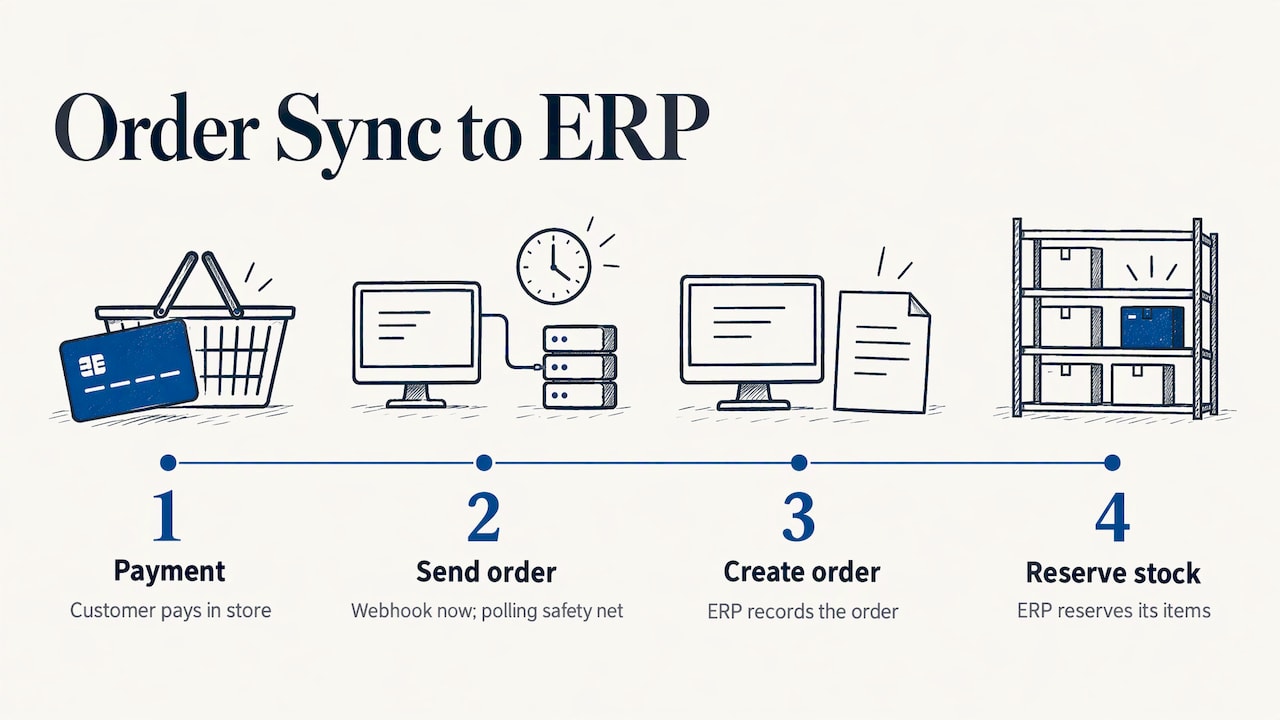
When a customer pays, the store should tell the ERP immediately. WooCommerce can send webhooks when events such as a new order occur, and the integration receives them, creates the order in the ERP and reserves the items. Some integrations poll the store every few minutes instead. Webhooks are faster and lighter on the server, but a polling job is a useful safety net if a webhook is missed. Many projects use both.
For the order side in depth, see our guide on eCommerce order management in the ERP.
Which system should control inventory
Choose one master for each piece of data and write it down.
| Data | Recommended master | Why |
|---|---|---|
| Available stock quantity | ERP | It sees purchases, production, transfers and returns |
| Product code (SKU), description, price list | ERP | One catalog, one source for invoicing and web |
| Web order | WooCommerce, then copied to ERP | The order is born at checkout |
| Order status (shipped, invoiced) | ERP | Warehouse and billing happen there |
| Marketing content, images, SEO text | WooCommerce | The store team edits it |
Two-way stock editing, where staff change quantities both in the store and in the ERP, is the most common cause of conflicts. If someone must correct stock, they do it in the ERP, as an inventory adjustment, and the correction flows to the store.
If your business has several warehouses or stores, the question becomes which locations feed the web shop. We cover that case in WooCommerce multi-warehouse stock management, and the broader warehouse topic in our guide to synchronizing warehouse and ERP.
What to prepare before connecting
A connector can only match what it can identify. Spend a few days on the data before you spend weeks on the integration.
Products and SKUs
- Every sellable item has one unique SKU, identical in the ERP and in WooCommerce. Spaces, case differences and leading zeros are common causes of failed matches.
- No duplicates and no products in the store without a counterpart in the ERP (or a clear rule for them).
- Decide how to treat kits, bundles and services, which have no physical stock of their own.
Variants
A variable product in WooCommerce is a parent with variations, each with its own SKU and stock. In many ERPs, sizes and colors are separate items or a matrix. Map each variation to one ERP item, and never put the stock on the parent.
Warehouses and availability
List the warehouses whose stock you want to sell online. Exclude quarantine, returns, demo and reserved locations. Define a safety buffer if you want, for example keeping the last unit off the web for items that sell in the shop too. That is a business rule the integration should apply before sending the quantity.
Order data
Decide how the integration treats customers (new customer record or generic web customer), tax and VAT codes, shipping lines, payment methods and electronic invoicing data. For Italian businesses, the order must carry what the ERP needs to produce a valid e-invoice; our article on SdI and eCommerce ERP integration shows what to check so documents are not rejected.
Compatibility
Not every management or accounting program talks to WooCommerce out of the box. An Italian review of an accounting package notes that its vendor does not natively cover every e-commerce platform, and that for WooCommerce there are certified integrations made by external suppliers: you have to choose and configure a compatible connector. Before buying any plugin, confirm which version of your ERP it supports, what it synchronizes (products, stock, orders, documents) and who maintains it when WooCommerce or the ERP updates.
Connector, plugin or custom integration
| Approach | Good for | Watch out for |
|---|---|---|
| Ready-made plugin | Simple catalogs, one warehouse, low order volume | Fixed field mapping, limited rules, dependence on the plugin author |
| Certified or vendor connector | ERP and store with a supported pairing | Costs per version, limits on customization |
| Custom integration through the API | Variants, several warehouses, production, special pricing, high volume | Needs analysis and a partner who maintains it |
| Spreadsheet or CSV import | Occasional updates | Delay, manual errors, no order flow |
Note that a plugin that syncs stock between two WooCommerce stores, or between the store and a spreadsheet, solves a different problem from connecting the store to your ERP. Check that the tool reads from your actual system of record.
How often stock should update and how to avoid overselling
There is no single correct interval. A store with a few orders a day can be fine with a sync every 5 to 15 minutes. If you sell fast-moving items, run promotions or share stock with marketplaces, you want event-driven updates: the ERP sends a change as soon as a movement is posted, and the store sends each order as soon as it is paid.
Overselling happens when two orders for the last unit arrive at nearly the same moment, or when a delay leaves the old quantity visible. A reference implementation for WooCommerce multi-location inventory documents the mechanisms used to handle this kind of concurrency: event IDs so a message is never applied twice, asynchronous webhook intake, locking per product, exponential backoff on retries, a dead-letter queue for messages that fail, and a daily reconciliation. You do not need to copy that project, but the ideas are the checklist for any serious integration:
- Idempotency: if the same order message arrives twice, stock is reduced once.
- Serialization per product: updates for the same SKU are processed one after another.
- Retries with increasing delay: a temporary error on the ERP or the server does not lose the order.
- Failure queue: messages that cannot be processed are kept and visible, not discarded.
- Daily reconciliation: a job compares ERP and store quantities and corrects differences.
Add a business rule on top: a buffer for items with very low stock, and a clear policy for what happens when an order is accepted for an item that turns out to be unavailable (backorder, partial shipment, refund).
Testing, monitoring and troubleshooting
Test on a staging copy
- Clone the store and use an ERP test company, never production data for the first run.
- Run a sample of 20 to 50 SKUs that includes simple products, variants and an item with zero stock.
- Place test orders, including two orders for the last unit in quick succession.
- Cancel and refund an order, and confirm the quantity returns.
- Post a goods receipt and a stock adjustment in the ERP and check the store.
- Only then enable the full catalog.
Monitor after launch
- Keep a log with SKU, old quantity, new quantity, source and time.
- Get an alert when a message fails or a queue grows.
- Run a daily report of items where ERP and store quantities differ.
- Review the first weeks every day, then weekly.
Common problems and where to look
| Symptom | Likely cause | What to check |
|---|---|---|
| Product never updates | SKU mismatch or stock management disabled | SKU in both systems, product stock setting |
| Variant shows wrong stock | Quantity written on the parent | Variation mapping |
| Stock drops twice per order | Order processed twice or two plugins reducing stock | Duplicate webhooks, other stock plugins |
| Updates arrive late | Heavy catalog, slow server, cron delays | Server load, job schedule |
| Store out of sync after a bulk import | ERP changes not sent as events | Run a full reconciliation |
Server performance matters here: API calls, webhooks and scheduled jobs all run on your hosting. A managed WordPress hosting setup with proper cron handling and backups reduces delayed jobs. And once stock is accurate, product pages are worth keeping findable: tools such as WooCommerce SEO automation help once your catalog data is reliable.
Our perspective
We have been building management software for companies for 30 years, and the pattern in WooCommerce projects is always the same: the plugin is rarely the problem. The problem is that nobody decided who owns the stock number.
That is why each client works with one dedicated consultant, not a call center. Before configuring anything, we study how your warehouse really works: how goods are received, which locations can be sold online, how returns are handled, how invoices are issued. Then we configure the ERP and the WooCommerce connection around those rules, and our team handles development and user support internally, so the person who built your integration is the one you call when something looks wrong.
Our approach is to make the ERP the reliable source of stock, keep the store simple and add the safeguards described above. It costs more thought at the start and far fewer corrections afterwards.
Claudio
Get an integration built around your warehouse
Linkware integrates ERP systems with WooCommerce and PrestaShop, configured on your processes, with training, start-up and professional assistance after go-live. If you want to see how your stock, orders and invoices would flow between the two systems, talk to us about a custom management system and request a demo.
If the store itself still needs to be built or rebuilt, our e-commerce creation service covers it together with the ERP connection.
FAQ
Can WooCommerce sync stock with an ERP without a plugin?
Yes. WooCommerce exposes a REST API and webhooks, so a custom integration can read and update stock directly. A plugin is a faster start for simple cases, while a custom integration is better when you have variants, several warehouses or specific business rules.
Should the ERP or WooCommerce be the master for stock?
For a business with a physical warehouse, the ERP should be the master, because it records receipts, shipments, transfers and returns. WooCommerce receives the available quantity and sends orders back. Avoid editing stock in both places.
How often should stock sync?
For low volumes, every 5 to 15 minutes is usually enough. For fast-selling items, promotions or shared stock, use event-driven updates plus a daily reconciliation that corrects any difference.
How do I stop overselling when two orders arrive together?
Use an integration that applies each order once, processes updates for the same product in sequence and retries failures without losing them. Add a safety buffer for low-stock items and a rule for orders that cannot be fulfilled.
What should I check before choosing a connector?
Check that it supports your ERP version, which data it synchronizes (stock, prices, orders, documents), how it handles variants and warehouses, and who maintains it after updates. Also confirm it produces the data your e-invoicing needs.
Recommended
Vuoi digitalizzare la tua azienda?
Un consulente LINKWARE ti propone la soluzione su misura, senza impegno.
Richiedi una demo gratuita